
Home page
The design of the start page depends largely on the customised configuration. The customer decides which content is displayed on the start page and in what form.
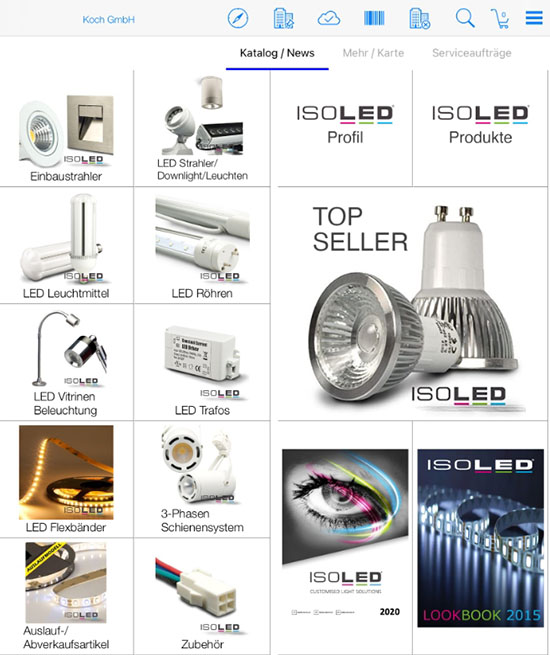
The following actions can be carried out from the start page:
| WIN | iOS | Function |
 |  | Log entries / transmission logs |
 |  | Add appointment |
 | Scan barcode | |
 |  | Quick item search |
 |  | Deactivate custome |
 | | Activate customer |
   | Data update | |
 |  | Home |
 Please note that the available icons listed above may also vary per customer installation.
General information
- Current version (programme version of the app)
- User name with which you have logged in
- URL with which you have logged in
- Customisation – current configuration status
The difference between program status and configuration status is that certain content and visualisations do not have to be made via a change within the program, but in a separate configuration file. When programme changes are made, the entire app must be updated; when configuration changes are made, the configuration file must only be reloaded within the app.
Tour planning
You set the basic parameters for route planning in the route planning function.
- Calendar name
- You can also adjust the time zone you use here.
- You can set how long an appointment lasts by default in the Appointment duration parameter
- You can set whether you would like to have a reminder before each appointment by default under Reminder. Here you can also select how long before the appointment you would like to be reminded.
- You can also enter the start and end of your daily working hours. The route planning is then optimised accordingly so that the appointments fit exactly into the time window you have specified.
- WIN: Enter the start of appointments when working hours are exceeded if customer appointments no longer fit into the predefined working time window. Here you have the option of collecting these appointments either at the beginning or end of the working day.
- WIN: Use this switch to set whether you want to take travelling time into account.
- WIN: In principle, you can also select a general default value for the starting point of your tour. In this case, the map does not show your current position but the position of the starting point defined there.
Display options
- WIN: Barcode scanner. Enter the type of scanner here
- WIN: Video scanner rotation: Enter the desired rotation value for video scanners here.
- Customer mode: Use the customer mode to display only special content to customers. If customer mode is active, only predefined content is displayed in the APP. To activate customer mode, proceed as follows:
- WIN: Switch the rule to ON
- iOS: Press the home button three times.
Login and databases
You have the following options here:
- Logging out the user: If you log out the user, you will be taken to the polumana login page. You can log in again using the URL, user name and password. Logging out a user is always helpful if, for example, you want to run the app with another user or if you want to change the instance (e.g. from the production environment to the test environment).
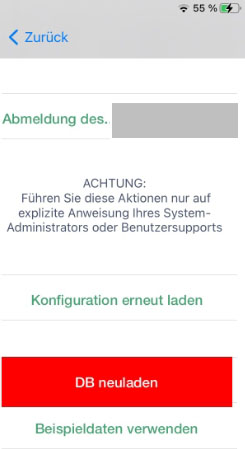
- Reload configuration: Customised settings are saved in the configuration file. From time to time it will be necessary to reload this file to make changes visible on the device. Your app system administrator will tell you whether the configuration file needs to be reloaded.
- Reload DB: A local database is always saved on your device. This database is normally updated by Deltaupdates. From time to time, however, it will be necessary to reload the entire database on your device. Your app system administrator will tell you whether you need to completely reload the database.
Please note that, depending on the size of the database, reloading the database may take a long time. This can take anywhere from a few minutes to one or more hours. Depending on the bandwidth with which you perform the reload.
- Use sample data: Here you can branch to the polumana demo database. To switch back to your environment, you will need the URL, user name and password.
- WIN: Select Optimise to optimise the database on your device and update the statistical data.
- iOS: In iOS, the database is optimised automatically with every update
Data update
An up-to-date database is always stored on your device. This database is supplied with delta updates depending on the specified interval. The content of a delta update can be, for example, changed item or customer master data. Likewise the order history or the total of open items.
The following information is available to you:
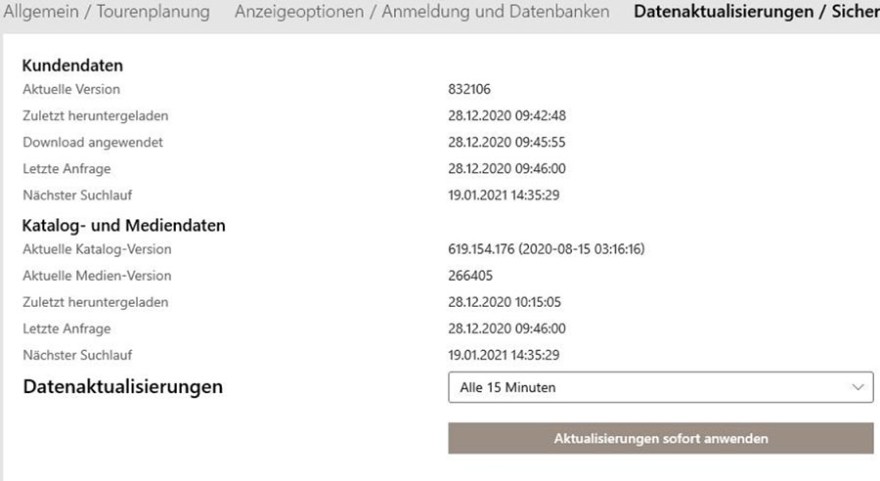
- Current version: The database is versioned. You can see which version you currently have installed on your device here.
- WIN: Data update: / iOS: Update check: Set the interval for the updates here. This means that the app checks whether new data is available in the cloud according to the interval set here.
Please note that the app does not automatically carry out data updates. You can see whether updates are available by looking at the update icon. You must install the update manually.
| WIN/iOS | Function |
| No update is currently available |
| Depending on the update size, the circle will be displayed partially or completely full. |
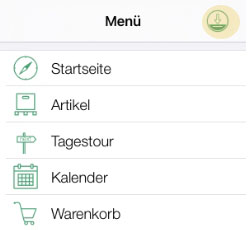
Click on the update icon to download the data. The update icon can be found in the WIN version on the home screen and in IOS by clicking on the hamburger menu.
The duration of the update may vary depending on the size of the update. Please bear in mind that you will not be able to use the app during an update. It is therefore not advisable to download updates during a sales call.
Additional information regarding the last update, last enquiry etc. is also available.
Backup copy
A backup copy is a copy of your essential data relating to data that has not yet been sent, such as shopping baskets or customer appointments. A backup copy is created automatically based on the set interval. You do not need to take any further action here. You only need to create a backup copy manually at the request of the person responsible for the APP.
Messages (A-messages)
Enquiries or events that are sent by the APP generate a message. There are messages for sending shopping carts (send cart), messages when customer appointments are created (create /modify appointment) or messages when you download customers via the customer server search (download partner). Normally you do not have to worry about the message. However, they are important information for polumana support.
If you click directly in iOS on a log entry or in WIN first on A messages and then on the information symbol, a text file opens. This data can be used to see what content has been written to the log.
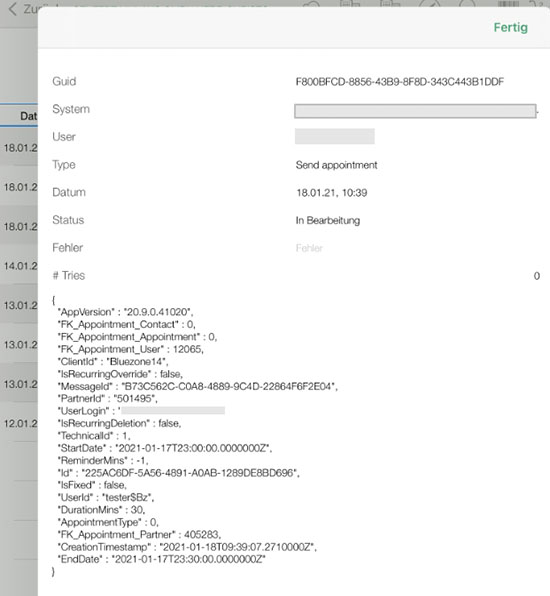
You can find further information specifically on the log entries regarding the sending of shopping baskets in the chapter Shopping baskets / transfer protocol.
 polumana® Online Help