
Basic – Process
You can open a shopping basket from several applications within POLUMANA®. Certain prerequisites are necessary to actually place goods in the shopping basket.
- A shopping basket always includes
- a customer (with a delivery address)
- an order type and
- a price list
In principle, it is possible to have several shopping baskets in stock at the same time. This means that it is possible to manage any number of shopping baskets for several customers.
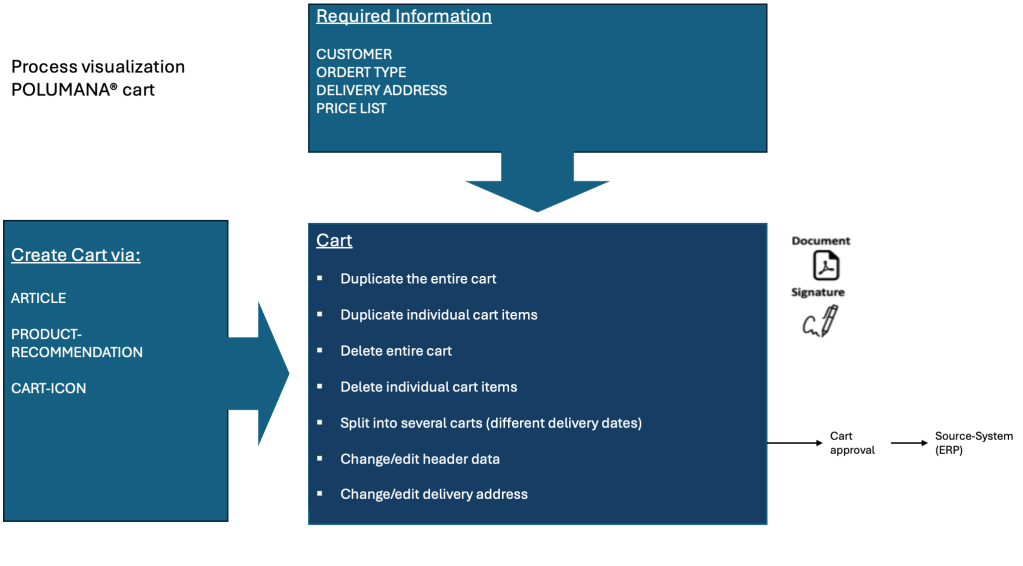
You can access the shopping basket via
- the item application by adding the desired item to the shopping basket
- the product recommendation application by adding the item to the shopping basket within the product recommendation
- directly via the shopping basket icon Create a new shopping basket.
 You can also manage so-called editorial content within the start page (e.g. a flip catalogue). In this case, access to the shopping basket would also be possible via this medium.
Components and functions
SEVERAL SHOPPING BASKETS FROM DIFFERENT CUSTOMERS OR THE SAME CUSTOMER
With POLUMANA®, it is possible to create multiple shopping carts, either for different customers or for the same customer. By selecting the “Create a new shopping basket” icon, as illustrated in the graphic above, a new shopping basket will be generated. The specific icon used determines the resulting action. Please note that creating a shopping cart for another customer does not automatically deactivate the current active customer.
| WIN | iOS | Function |
 |  | Creation of a new shopping basket. Customer must be specified |
 |  | Creation of additional shopping basket for active customers |
To check how many active shopping baskets are currently saved, use the icon to expand/split the screen.

You will then see all your saved shopping baskets. To edit a shopping basket, simply click on it. The shopping baskets remain in stock until the shopping basket is either released or deleted.
To switch to the full screen, click on the “Expand icon”.
QUICK ENTRY OF ITEMS
Quick item entry is an efficient method of adding goods to the shopping basket. However, you need to know the item number or parts of the item number of the desired product.
| WIN | iOS | Function |
 |  | Quick item entry |
To do this, tap on the “Quick item entry icon” and enter the item number and quantity of the desired item. Once you have clicked on the “Done” button, all the items listed will be added to the shopping basket.

RECORD ITEMS USING A BARCODE SCANNER
Another alternative to adding items to the shopping basket is to scan the items. POLUMANA® offers you three options:
- Video scanner
- Laser scanner
- Laser scanner with quantity input
You can specify the type of scanner to be used in the settings under the display options. To start the scanning process, click on the scan icon  on the home page.
With the video scanner, you scan the barcode directly via the camera on your device. As the exact positioning of the camera on the barcode is sometimes time-consuming, this type of scanning should only be used if there are few items to scan.
Using a laser scanner – as an attachment on your device – you can scan many products very quickly. In addition, the “Enter quantity” button in the POLUMANA® app allows you to enter the desired quantity of the scanned product directly via the app.

With a laser scanner with quantity input, you use the input field on the scanner itself to enter the quantity. However, this requires a suitable scanner that supports this function.
If the scanner has difficulties reading the EAN code, it is also possible to enter the EAN code directly into the missing “Barcode” field below the quantity entry button.
With POLUMANA® you can use all laser scanners that support the HID protocol (Human interface device).
ORDER HEADER DATA
When a shopping basket is created, the data from the customer is automatically transferred to the “Customer” area in the shopping basket. As a rule, this data cannot be changed within the shopping basket. Please also note here that customer data is always supplied from your source system (ERP).
Depending on the configuration, however, it is possible to change certain customer data directly on your device. The respective operator (customer) POLUMANA® decides whether this is desired or not.
DELIVERY ADDRESS
If no delivery address has been entered for the customer, the customer address is automatically displayed here. If a delivery address exists for the customer, you can search for and enter this delivery address using the magnifying glass (iOS) or by ticking “Store (WIN)”. To assign an individual delivery address, click on the editing pencil within the “Delivery address” area.

TILE AND LIST VIEW (IOS ONLY)
Within iOS, you can display items in the shopping basket in two different views.
- in a detailed view (standard view)
- as a list
| WIN | iOS | Function |
 | List view | |
 | Detail view |
Simply click on the “list view icon” above the item list.
DUPLICATE OR DELETE SHOPPING BASKET ITEMS OR SHOPPING BASKET
It is possible to delete or duplicate an entire shopping basket or just individual shopping basket items. If you duplicate an entire shopping basket, this shopping basket will appear in the saved shopping baskets as described in the chapter Multiple shopping baskets from different customers or the same customer. If you copy an individual shopping basket item, this item is displayed directly below the item that was copied.
| WIN | iOS | Function |
 |  | Delete the entire shopping basket / delete shopping basket items |
 | | Copying an entire shopping basket / copying shopping basket items |
To copy or delete shopping baskets or shopping basket items, click on the “Copy icon” or “Delete icon”, either within the item or at shopping basket level.
ORDER CONFIRMATION/ORDER
Before you release the shopping basket, you can generate another summary in the form of an order confirmation.
| WIN | iOS | Function |
 |  | Output order confirmation/order PDF |
To do this, click on the corresponding “Best order confirmation icon”

Please note that the mere issue of an order confirmation does not mean that the shopping basket has been released.

Approval
At the end of the process, the shopping basket is actually released. Before you approve a shopping basket, check that it is correct.
Attention: a released shopping basket can no longer be called up in POLUMANA®. The shopping basket is transferred to the connected cloud and then deleted (fire and forget). You can see which and how many shopping baskets you have placed in the transfer log.
| WIN | iOS | Function |
 | Approval | Approve shopping basket |
Release the shopping basket by clicking on the “Approval icon”. Another security enquiry will appear. After confirming this query, the shopping basket is transmitted and then deleted.

TRANSFER PROTOCOL
| WIN | iOS | Function |
 |  | Cloud / transmission logs / log entries |
You can see which actions were transmitted in the “Type” column. The “Send Cart” type is used for the transmission of a shopping basket.

You can also filter this view by clicking on the “Filter icon” at the top and searching for “Cart” within the search parameter “Type”. You will then only be shown the logs of the transferred shopping carts.
You can find more detailed information about the transfer logs in the Settings chapter.
 polumana® Online Help