
Tour overview
In POLUMANA®, you have the option of allocating or changing appointments for customer visits within various applications.
You can manage appointments from these applications:
- Daily Visits
- Calendar
- Customer
- Visit reports
The daily tour application provides a complete overview of all the appointments allocated for your customer visits. From this application, in addition to changing appointments, you also have the option of editing the calendar.
| WIN | iOS | Function |
| n.a. |  | Tile view |
| n.a. |  | List view |
| n.a. |  | Call customer |
| n.a. |  | Start navigation to customer |
 |  | Call up customer details |
 |  | View tour |
 | | Optimise tour |
 | | Add appointment |
| n.a. |  | Change/postpone date |
| [dd.mm.jj] | CW X Today CW Y | Overview of appointments |
In iOS, you can call this customer directly on the tile, customer-specifically via the “Call customer icon”, start navigation to this customer, display the customers either via the tiles or in the form of a list.
 Please note that this function may not be available depending on which client you are using on your device to make calls.
View tour
When you call up the Daily tour application, the date of the day is suggested by default. However, you can also view the appointments and tours for other days. To do this, simply click on the “Overview appointment icon”, which represents a date.
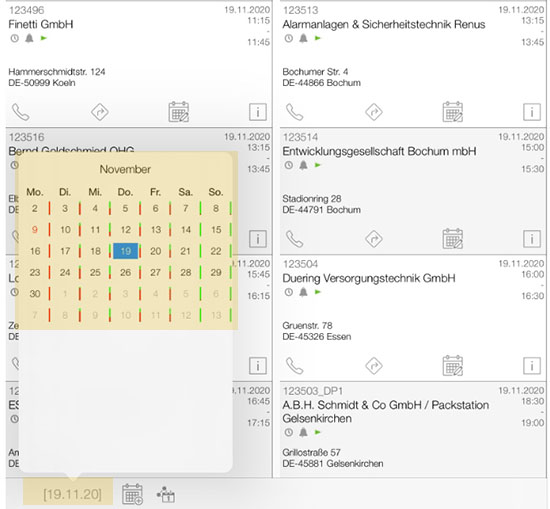
This icon can be found in iOS at the bottom left of the screen. In WIN at the top right. The red bars to the right of the date in iOS and the green bars in WIN show the frequency of visits on that day.
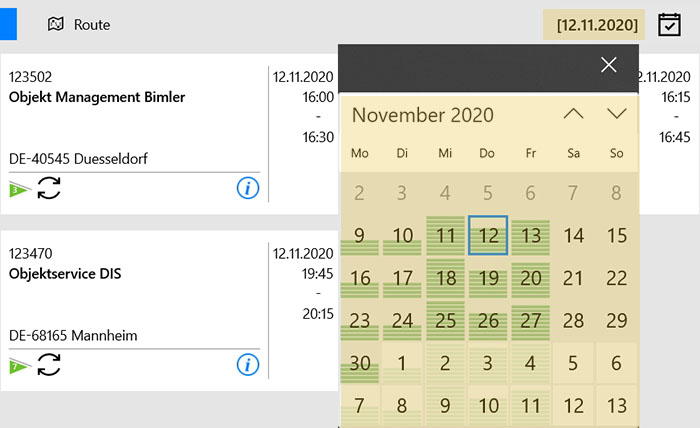
If you now click on the desired day, the tour for that day will be opened. The tour itself is displayed by clicking on the “View tour icon”. It is important that you optimise the tour beforehand. This means that POLUMANA® optimises the tour on the basis of the visit dates entered.
Further important information can be found directly in the Customer/Tour chapter.
Please also read all the information within the Customers application
Change dates
To change an appointment in iOS, simply tap on the “Change appointment icon” within the tile or within the list view. A dialogue will be displayed in which you can enter the desired data. In WIN, you must first call up the tour, select the desired customer on the right and then change the appointment data.
You can read exactly how to proceed with daily tours in the chapter Tour planning.
Status
Customers within the Day Tours application can have the following statuses.
| WIN | iOS | Function |
 | | Telephone appointment |
 | | Appointment – but not today |
 | | Appointment – today |
 | | Fixed appointment |
 |  | Single appointment |
 |  | Reminder for appointment |
Please note that the basic settings for the duration of the visit time, the start and end of your working time and the appointment time zone of your visit can be changed in the settings under Tour planning.
 polumana® Online Help